Home Exterior Visualizer: See Your House with a New Look First
Not sure which siding color, roof color or door color to pick? Upload a photo of your house, describe the change and what must stay the same, and AiExterior draws the new look on your own photo, so you can compare options before you buy paint, siding or shingles. This page explains the kinds of exterior visualizer, what to expect from an AI one, and how to take a photo that works.
Free sign-up with email or Google. You get 2 free renders in most countries; free renders are watermarked.
Before and after examples
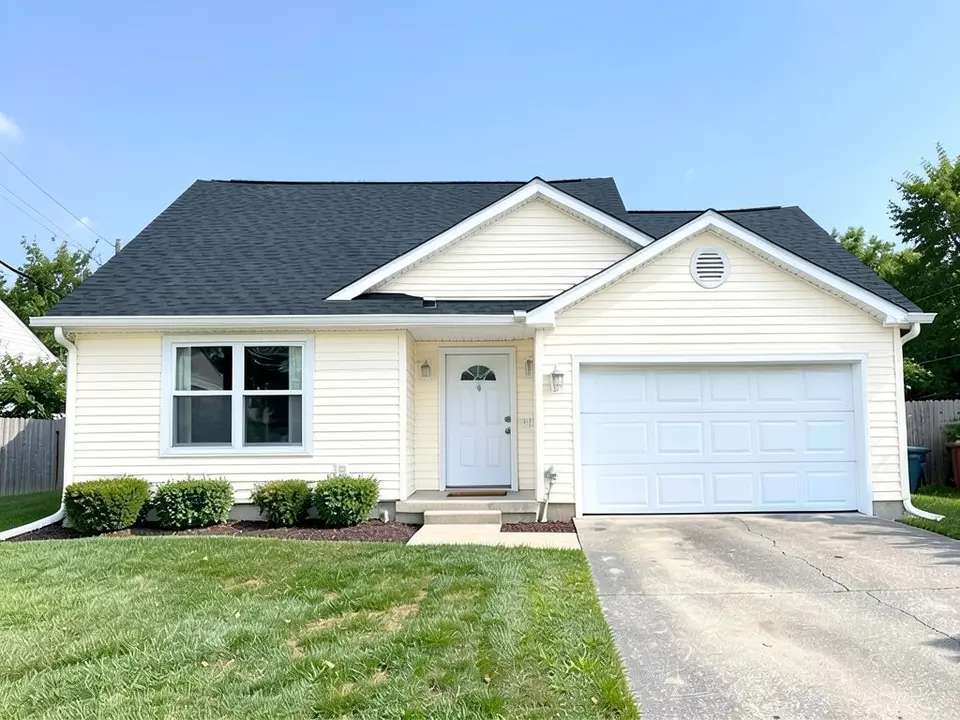
Example images are AI-generated: both the sample houses and their redesigns. Results change from render to render, so treat them as concepts, not exact product matches.
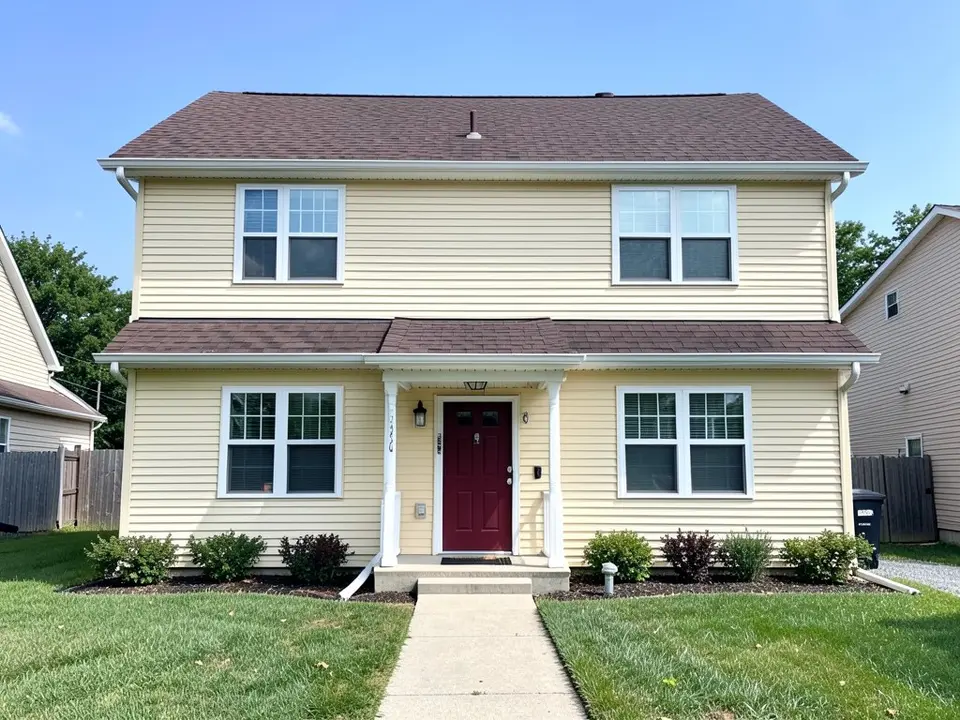 Before
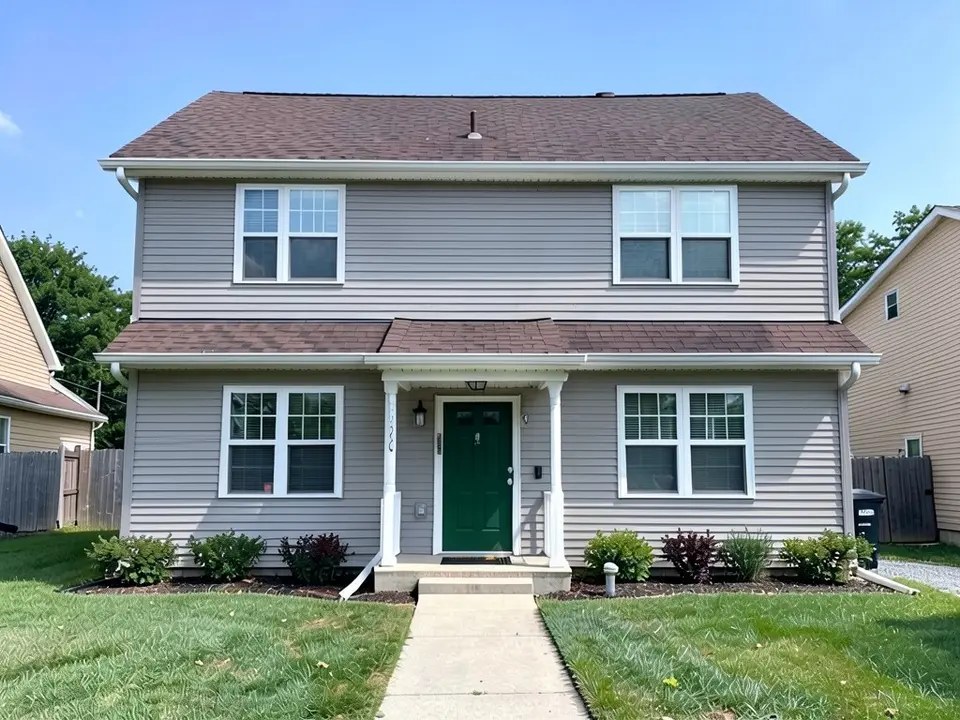 After
After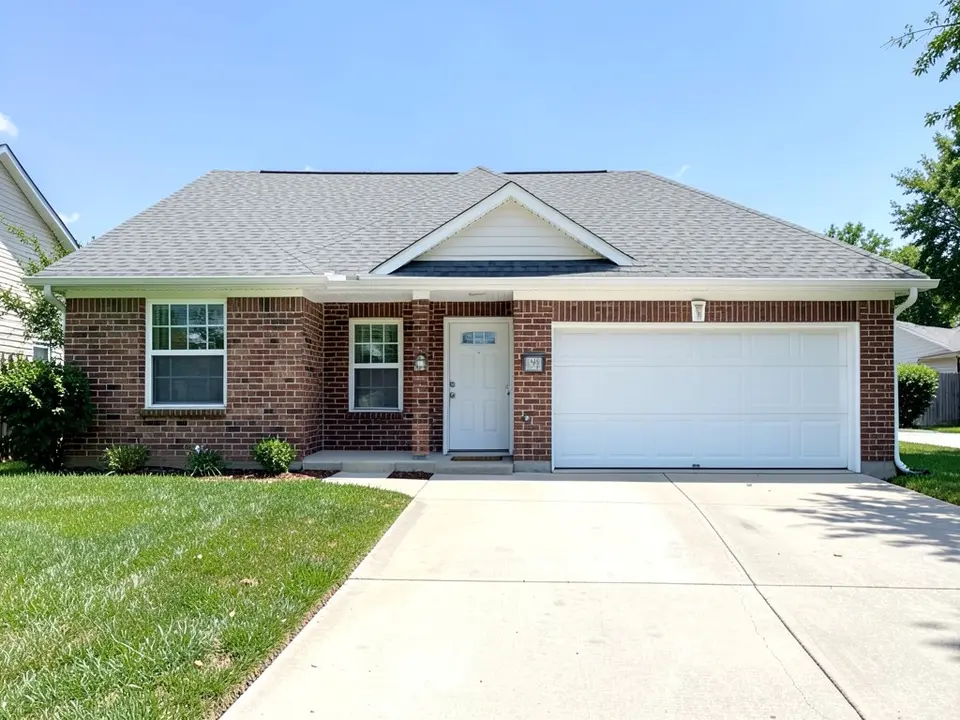 Before
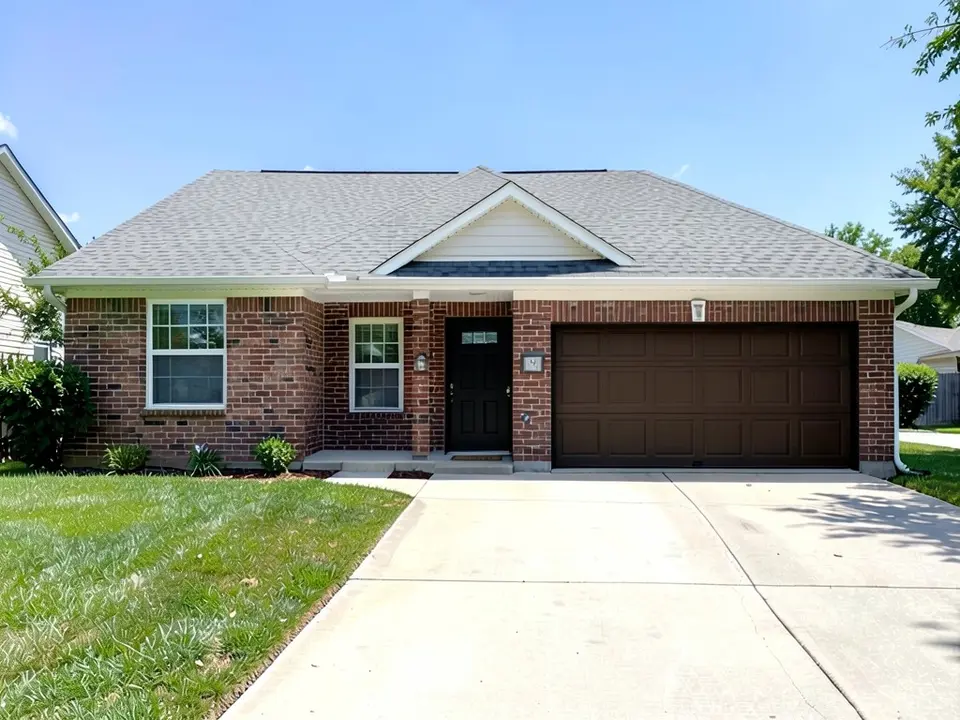 After
After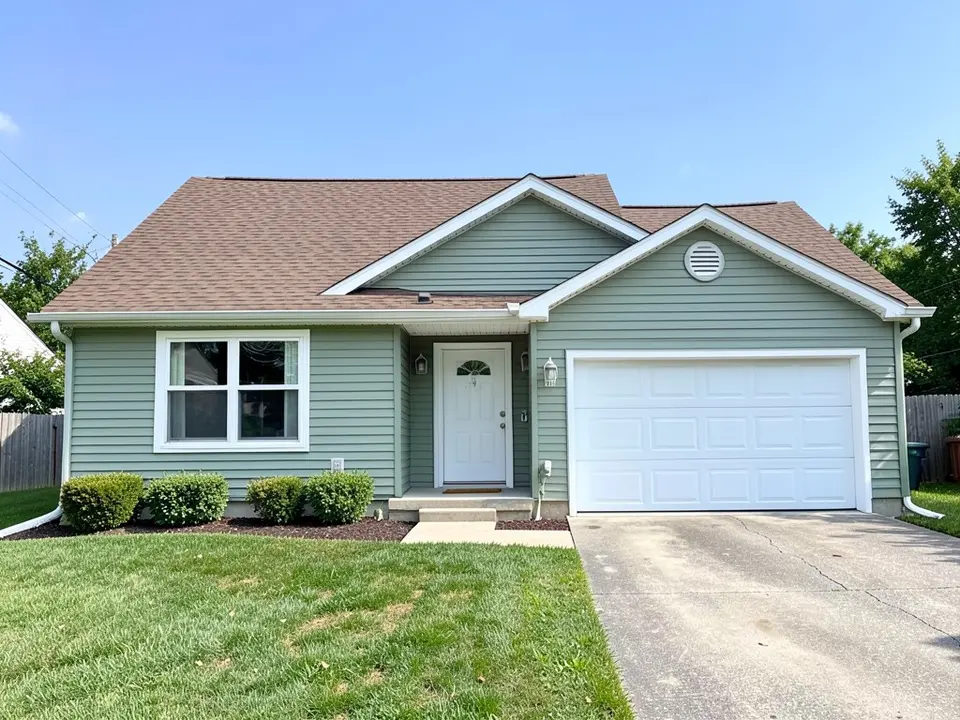 Before
 After
AfterWhat the AI can and cannot do
It can redraw your own house photo with new wall, roof or door colors, in one change or several, so you can compare looks side by side while usually keeping the shape of the house, the windows and the roofline.
It cannot match a brand color, show how a color looks in your light, measure your house or price the work. It picks its own shade for a color name and sometimes changes a detail you did not ask about, as the examples above show. Treat each result as a picture of a direction, not an order.
Two kinds of home exterior visualizer
Search for a home exterior visualizer and you will find two main types. This is a general description, based on the tools we read about, not a review of every tool.
| Type | How it works | Limit to know |
|---|---|---|
| Maker tools (siding, roofing, paint companies) | You pick that company's products and colors from menus. DaVinci Roofscapes' tool, as described in 2017, let you upload a photo or choose one of 10 sample homes and change the roof, siding, brick or stone, trim, front door and window trim. James Hardie says its home visualizer lets you try siding, trim and accent colors. | Built around one company's products; DaVinci's roof options were its own products only |
| AI photo editors (like AiExterior) | You upload your photo and describe the change in words; the AI redraws the picture. | Open-ended, but it does not know any brand's color or product, and it can change details |
Sources: Roofing Magazine, "DaVinci Roofscapes offers free online tool for exterior design" (July 26, 2017; based on the company's own description, and the tool may have changed since); James Hardie, "The most popular house colors to inspire your siding" (jameshardie.com, November 9, 2023; the company makes siding).
If you already know the product you want, a maker's tool shows it more exactly. If you are still deciding on colors and looks, an AI visualizer lets you try ideas the menus do not offer. Many people use both: ideas first, products second.
What to try first on your house
The advice below comes from James Hardie's color guide (a siding maker, so keep its own interest in mind). Where we add our own view, we say so.
- Roof and siding together (James Hardie): your roof should complement, not clash with, the siding. Neutral black, gray or brown roofing works with most siding colors, and for the best match the guide suggests a siding with the same undertone as the roof.
- Trim and doors (James Hardie): bold trim looks striking against light siding, and a darker siding can take crisp white or beige trim. The shutters and front door do not need to match, but should look coordinated.
- Light matters (James Hardie): bright natural light tends to wash out lighter colors and shade can make colors look cooler or darker, so test samples at different times of day.
- Start small (our view): a door, a garage door or a roof color is a quicker, cheaper change than new siding, so it is a good first thing to compare. Our update house exterior guide lists more ideas.
How to take a photo that gives good results
This part is general guidance from our own testing, not from the sources above.
- Daylight, straight on. Stand far enough back that the whole front fits from the ground to the roof peak, with the camera level and as square to the wall as you can.
- Clear the view. Cars, bins and heavy shadows over the walls make it harder for the AI to know what is wall and what is not.
- One photo per side. Do the front first; other sides work the same way.
- Name what stays. Always list the roof, windows, doors and trim you want to keep.
How to try a new look on your house
The examples on this page used the same idea, one photo plus one written edit, but were run directly on an image model, not through this tool, so your results will look different.
- Photograph the front in daylight, straight on, from far enough back that the whole house fits in the frame.
- Open the photo enhancer, upload your photo, keep Standard Enhancement and click Generate Enhancement. This gives you a sharp copy of your house as it is.
- Click Edit (the pencil button above the result) and paste one of the prompts below into Edit Instructions, or write your own. Name each change as closely as you can and list what must stay.
- Check the whole image. Compare the windows, the trim, the roof and the doors with your photo. If something changed that you did not ask for, run it again with clearer words.
The enhancement and the edit each use credits, so this route uses both free renders. To restyle the whole outside at once instead, use the exterior designer, or the paint visualizer if you only want to repaint.
The exact prompts behind the examples
These are the edit prompts used for the three examples, word for word. Paste one into Edit Instructions and change the colors and the list of what stays to suit your house.
Prompt 1: gray siding and a green front door
Change only two things: recolor the pale yellow siding on every wall to a light warm gray, keeping the same horizontal board lines, and change the dark red front door to deep forest green. Keep the white window trim, every window, the porch shape, the dark brown roof, the house's exact shape, the walkway, the lawn, the sky and the camera angle exactly the same.
Prompt 2: new garage door and front door
Change only two things: change the white garage door to a dark brown wood-look garage door and change the white front door to black. Keep the red-brown brick, the white window trim, every window, the gray roof, the house's exact shape, the driveway, the lawn, the sky and the camera angle exactly the same.
Prompt 3: charcoal roof and cream siding
Change only two things: recolor the brown roof to dark charcoal gray, and recolor the sage green siding on every wall to pale off-white cream, almost white, keeping the same horizontal board lines. Keep the white window trim, every window, the white front door, the white garage door, the house's exact shape, the driveway, the lawn, the sky and the camera angle exactly the same.
Before you start
- Get real samples. Hold a sample against the house in daylight, next to the roof, brick and trim; a screen cannot show your light.
- Check your HOA or town. Some limit exterior colors and materials.
- Get two or three local quotes and show the installers or painters the render so they know which look you mean.
Who this is for
Homeowners planning new siding, a new roof, a repaint or a door update, people choosing between two or three looks who want to see them first, and anyone who needs a picture to show a contractor or the rest of the family.
More exterior tools and ideas
Go deeper on one part of the house with the siding visualizer, siding colors, roof visualizer and roof shingle colors pages, or compare materials in the types of siding guide.
You can also read the shutter colors, the front door colors and the exterior trim colors pages.
Frequently asked questions
What is a home exterior visualizer?
It is a tool that shows your house with new colors or materials before you spend money. Some are made by siding, roofing or paint companies and use that company's products; others, like AiExterior, edit your own photo with AI from a written description. In both cases the result is a picture of a possible look, not a quote or a color match.
Is this home exterior visualizer free?
Signing up is free and gives you 5 credits, which is enough for 2 renders in most countries. Free renders carry an AiExterior watermark. If you want more renders or clean images, paid plans are available on the pricing page.
Do I need an account?
Yes. You need to sign in before a render starts, with an email code or your Google account. That is how the free credits are attached to you.
Can I change the siding, roof and door in one picture?
Yes, you can ask for more than one change in the same edit, as the examples above do. Name each change, say what must stay the same, and check the whole image afterward, because the AI can also change details you did not ask about. For a clearer comparison, change one or two things at a time.
Can I pick real paint or siding colors from a brand?
No. The tool does not have a brand color catalog. You describe a color in words and the AI chooses its own shade, so use the render to decide on a direction and then compare real samples. James Hardie, for example, advises testing swatches at different times of the day because sunlight changes how a color looks.
How is this different from a siding or roofing company visualizer?
A maker's visualizer is built around that maker's own products. The DaVinci Roofscapes tool described in Roofing Magazine in 2017, for example, limited roof options to DaVinci's own products and paint to two brands. AiExterior does not know any product line, so it is open-ended but less exact. Many people try a look here first and then check real products.
Will it keep my windows, roof and doors in place?
It aims to, and the examples on this page mostly did, but it can also change small things such as the lawn, the trim or a door. If a render changes something you wanted to keep, run it again with a clearer list of what must stay the same.
Does it tell me what the work will cost?
No. It shows a look, not a price. It does not measure your house or know what materials cost where you live. Get quotes from local contractors and show them the render.
Try it on your own house
Upload a photo of your houseFree sign-up with email or Google. You get 2 free renders in most countries; free renders are watermarked.